

The short answer: False alerts from your video doorbell are almost always fixable — the main causes are sensitivity set too high, motion zones that are too wide, and lack of AI person detection. Lower your sensitivity, draw tight motion zones, and enable person-only detection on your Ring Battery Doorbell Plus, Eufy E340, Google Nest, Arlo 2K HDR or TP-Link Tapo D230S1 — and most false alerts stop within minutes.
Table of Contents
Quick Summary
| FIX | TIME TO APPLY | WORKS BEST FOR |
|---|---|---|
| Adjust motion sensitivity | 2 minutes | All brands |
| Set motion zones | 5 minutes | All brands |
| Enable AI person detection | 2 minutes | Eufy, Nest, Arlo, Tapo |
| Use Smart Alerts | 2 minutes | Ring |
| Set a motion schedule | 3 minutes | Ring, Eufy |
| Change mounting angle | 10–30 minutes | Physical fix |
| Remove obstructions | 5 minutes | Physical fix |
Video Doorbell False Alerts — What's Causing Them?
Before fixing the problem, it helps to understand what’s actually triggering your doorbell. False alerts rarely come from a single source — there are several culprits, and your doorbell may be guilty of more than one.
Sensitivity Set Too High
Every video doorbell ships with sensitivity set to medium or high — because manufacturers would rather you get too many alerts than miss a real event. The result? Your doorbell treats a passing leaf like a suspicious intruder.
Motion Zones That Are Too Wide
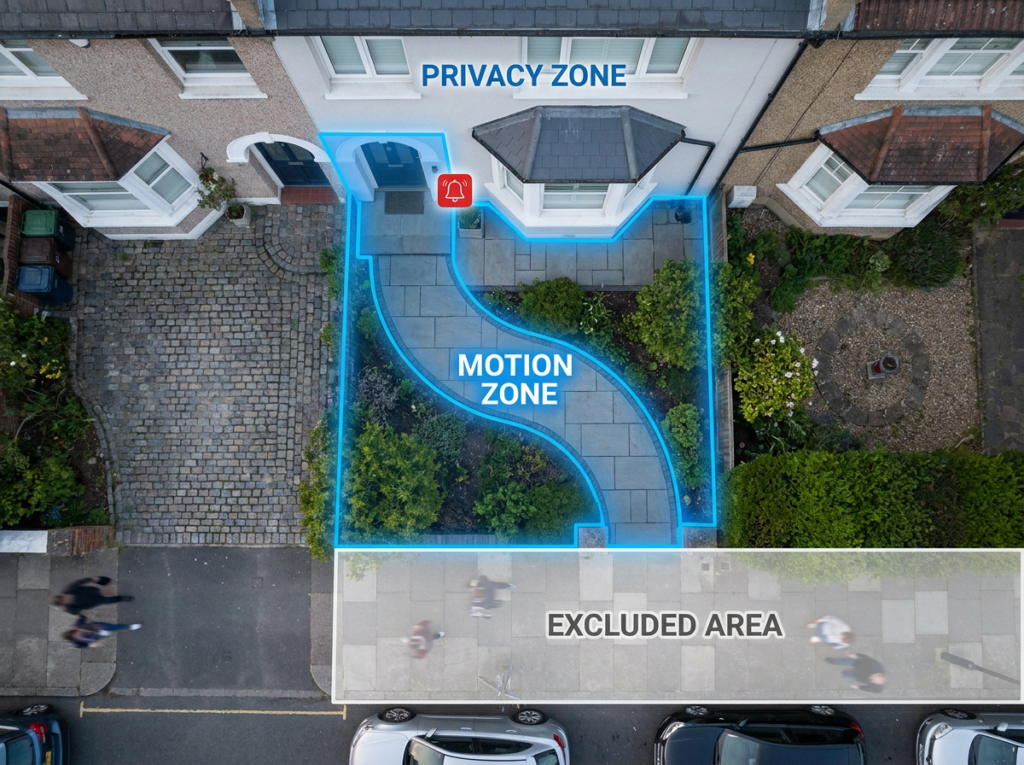
If your motion zone covers the pavement, the road, or your neighbour’s driveway, you’ll get alerts every time someone walks past. This is one of the most common causes of alert overload in UK homes, where front doors often open directly onto busy pavements.
Trees, Bushes, and Moving Shadows
PIR sensors detect changes in heat and movement. A tree branch swaying in the wind looks exactly like a person to your doorbell’s sensor. The same goes for cloud shadows shifting across a sunlit wall — especially in winter when the low UK sun creates long, sweeping shadows.
Insects and Spiders
A spider spinning a web across your lens, or a moth flying past the infrared LEDs at night, can trigger multiple alerts in a single evening. Spiders are particularly notorious — the IR light attracts insects, which attracts spiders, and suddenly your doorbell is going off every 20 minutes at 3am for no apparent reason.
Passing Cars and Headlights
Car headlights sweeping across your front wall are a very common trigger for video doorbell false alerts— especially on roads with parking. Even if the car is outside your motion zone on the map, the light it produces can still trigger the sensor.
Infrared Light Reflections at Night
If the lens is too close to a wall, a door frame, or a glass panel, the IR light bounces back into the camera and causes constant false triggers. This is a physical issue, not a settings issue.
Fix 1: Lower Your Motion Sensitivity
The fastest fix. Every doorbell app has a sensitivity slider — moving it down reduces the distance and intensity of movement required to trigger an alert.
On Ring (Ring Battery Doorbell Plus): Ring App → Devices → your doorbell → Motion Settings → Motion Sensitivity → drag slider left
Start by dropping it one notch and monitor for a day. For most UK homes facing a pavement, medium-low is the sweet spot.
On Eufy (Eufy E340 / Eufy S330): Eufy Security App → Camera Settings → Motion Detection → Sensitivity → lower the slider
Eufy lets you separate sensitivity for PIR and pixel-based detection independently, which gives you more precise control.
On Google Nest (Google Nest Doorbell): Google Home App → your doorbell → Settings → three dots → Video → Wake-up Sensitivity → lower the level
On Arlo (Arlo Video Doorbell 2K HDR): Arlo App → your doorbell → Device Settings → Motion Settings → Motion Sensitivity → reduce
On TP-Link Tapo (Tapo D230S1 / Tapo D235): Tapo App → your doorbell → Motion Detection → Sensitivity → adjust slider
⚠️ Don’t go too low. After adjusting, always test by walking up to your own door. The goal is fewer false alerts — not missing a real visitor.
Fix 2: Set Up Motion Zones — Your Most Powerful Tool
Motion zones let you define exactly which part of the camera’s view should trigger an alert. Done properly, this single fix eliminates the majority of video doorbell false alerts. For more on choosing a doorbell with the best zone tools, see our best doorbell camera UK guide.
Ring Motion Zones
Ring App → Devices → your doorbell → Motion Settings → Motion Zones → Add a Motion Zone
Draw a box covering only your doorstep and path. Remove coverage of the road and pavement. On Ring Pro models, you get radar-based 3D Motion Detection — this is significantly more accurate because it detects actual movement toward your door rather than any movement in the frame.
Ring 3D Motion Detection (Pro models): Motion Settings → 3D Motion Detection → drag the range line toward the door
This is the most effective Ring fix for homes on a busy UK street. The radar-based system can filter out cars passing on the road while still catching someone walking up your path.
Eufy Activity Zones and Ignored Zones
Eufy has two zone tools:
Activity Zone — defines where the camera should look for motion: Eufy App → Camera Settings → Motion Detection → Activity Zone → tap ⊕ → drag corners to cover your path and doorstep
Ignored Zone — defines specific areas to ignore completely: Eufy App → Camera Settings → Motion Detection → Ignored Zone → draw over the problem area
For the Eufy E340, which relies on pixel-based detection rather than PIR, the Ignored Zone tool is your main defence against tree shadows and passing traffic.
Google Nest Activity Zones
Google Home App → your doorbell → Settings → Activity Zones → Create Zone → drag the outline
Nest is simple but effective. Draw a zone around your doorstep and path. Anything outside the zone — cars, pedestrians, neighbours — won’t trigger video doorbell false alerts.
Arlo Smart Zones
Arlo App → your doorbell → Device Settings → Activity Zones → Add Zone
Arlo’s zone tool lets you create multiple zones and label them. For the Arlo 2K HDR in a flat or shared entrance, create a tight zone covering only your door and exclude the shared corridor or street beyond.
Fix 3: Enable AI Person Detection
AI person detection uses machine learning to distinguish between a human silhouette and everything else — trees, shadows, animals, vehicles. Instead of alerting you to “motion”, the doorbell only alerts you when it identifies a person in the frame. This is the biggest single upgrade you can make to your false alert setup. It’s also one of the key features to look for when shopping — covered in our best video doorbells with no subscription guide.
Eufy — Human Detection (free, no subscription): Eufy App → Camera Settings → Motion Detection → Detection Type → Human Only
This is one of Eufy’s biggest selling points: full AI person detection without a subscription. On the Eufy S330 and Eufy E340, switching to “Human Only” dramatically reduces false alerts from environmental factors.
Google Nest — Familiar Face Alerts: Requires a Nest Aware subscription (from £6/month). The system distinguishes between people, animals, and vehicles. You can also teach it to recognise familiar faces and receive named alerts.
Arlo — Smart Notifications: Requires an Arlo Secure subscription (from £2.99/month). Smart Alerts on the Arlo 2K HDR can filter by people, vehicles, animals, and packages.
Ring — Smart Alerts (Ring Protect required): Ring App → your doorbell → Smart Alerts → toggle People, Packages, and Vehicles independently
Smart Alerts require a Ring Protect subscription (from £3.99/month). Toggle off “Other Motion” and alert only for People — for most Ring Battery Doorbell Plus users, this is the most practical fix.
TP-Link Tapo — Person Detection (free on most models): Tapo App → your doorbell → Motion Detection → Enable Person Detection
Person detection on the Tapo D230S1 and Tapo D235 is free and works well. Once enabled, the camera filters out most non-human movement automatically.
Fix 4: Use Motion Schedules
Sometimes you don’t need full-time motion alerts. If you work from home, you already know who’s coming and going during the day — but you do want alerts at night.
Ring Motion Schedule: Ring App → Devices → your doorbell → Motion Settings → Motion Schedules → Add Schedule → set the times you want alerts active
For example: alerts active 10pm–7am only. Your doorbell still records all day — you just won’t get pinged during the day.
Eufy Motion Schedule: Eufy App → Security → your doorbell → Edit Schedule
Eufy’s schedule tool lets you create different detection profiles for different times. You can have strict “Human Only” detection during the day and full motion detection at night.
Fix 5: Adjust Motion Frequency (Ring)
This Ring-specific setting gets overlooked. Motion Frequency controls how quickly Ring sends a new alert after the previous one.
Ring App → your doorbell → Device Settings → Motion Settings → Motion Frequency
- Frequently = alert for every event (most alerts)
- Regularly = standard frequency
- Periodically = longer gap between alerts (fewest alerts)
If a delivery driver parks outside for five minutes, “Frequently” mode means multiple notifications. Switch to “Periodically” and you’ll get one alert, not five.
Fix 6: Fix the Mounting Position and Angle
No app setting will fully fix a physically poor installation. If your doorbell is aimed at a reflective surface, a busy road, or a moving tree, you’ll always get video doorbell false alerts. For a full guide on optimal placement, see where to mount a video doorbell.
The ideal mounting position:
- Height: 1.2–1.4 metres (about shoulder height) for optimum PIR detection
- Angle: 15–25 degrees downward, covering the path to your door
- Clearance: At least 15–20cm of clear space around the lens — no door frames or pillars directly in front of the camera
For UK terraced homes: The challenge with most terraced properties is that the front door opens almost directly onto the pavement. A wedge mount (angled bracket) can redirect the camera to face the door more directly, effectively narrowing the field of view and reducing street triggers.
Check for reflective surfaces: Glass panels beside the door, gloss-painted walls, and shiny letterboxes can bounce infrared light back into the lens at night. Either reposition the camera or eliminate the reflective surface.
Fix 7: Remove Physical Triggers
If you’ve set up your zones and adjusted sensitivity but still get regular alerts, walk outside and look at what your camera can actually see:
Overhanging branches: Anything within 2 metres of the camera that moves in wind will trigger PIR sensors. Trim bushes, hedges, and branches away from the camera’s line of sight.
Security lights: If you have a PIR-activated floodlight near your doorbell, the sudden burst of light can trigger a video doorbell false alerts. Position them separately, or use the Ignored Zone to exclude the lit area.
Spider webs: Clean the lens and housing monthly. A small amount of petroleum jelly on the outside of the camera body (not the lens) can discourage spiders from building webs over it.
Wheelie bins and garden furniture: If something large and light-coloured sits within the motion zone, shifting shadows across it can trigger an alert. Move it outside the zone.
Brand-Specific Quick Reference
Ring — Best fixes
- Enable Smart Alerts → People only (Ring Protect required)
- Use 3D Motion Detection (Pro models)
- Set Motion Schedule for night-only alerts
- Adjust Motion Frequency to “Periodically”
Eufy — Best fixes
- Switch to “Human Only” detection (free)
- Set up Ignored Zones for problem areas
- Use Activity Zones to narrow coverage
Google Nest — Best fixes
- Set Activity Zones to cover doorstep only
- Enable Familiar Face detection (Nest Aware)
- Lower Wake-up Sensitivity in settings
Arlo — Best fixes
- Enable Smart Notifications → People only
- Create Activity Zones
- Toggle off “All other motion”
TP-Link Tapo — Best fixes
- Enable Person Detection (free)
- Set Detection Zone tightly around doorstep
- Lower sensitivity slider
Do False Alerts Affect Your Security?
Working in security, I’ve seen this problem first-hand. The real risk with too many false alerts is alert fatigue — you start ignoring notifications because they’re almost always nothing. And that’s exactly when a real event goes unnoticed.
Getting your false alert rate down isn’t just about convenience. It’s about making your doorbell actually useful as a security device. A camera that cries wolf every ten minutes is almost as bad as no camera at all. It’s the same reason do video doorbells deter burglars depends entirely on you actually paying attention to them.
When False Alerts Won’t Stop — Advanced Steps
If you’ve worked through every fix above and still can’t get clean video doorbell false alerts:
Reset and reconfigure from scratch. Settings can get corrupted after firmware updates. A factory reset followed by a clean setup often resolves persistent issues.
Update firmware. Manufacturers push detection algorithm improvements via firmware. Check your app for pending updates.
Check WiFi signal strength. A weak WiFi signal causes frame drops and encoding artefacts that some cameras interpret as motion. If your doorbell is far from the router, consider a mesh node near the front door. See our guide on how to improve video doorbell WiFi signal UK for detailed steps.
Contact manufacturer support. If a specific product has a persistent false alert bug, it’s often documented in community forums. Ring, Eufy, and Arlo all have active support forums where known firmware issues are tracked.
FAQ
Why does my Ring doorbell go off for no reason at night? The most common causes are insects near the IR LEDs, a spider web on the lens, or infrared light bouncing off a reflective surface nearby. Clean the lens, enable Smart Alerts with People-only detection, and reduce sensitivity. If the problem persists, check whether the IR illumination is hitting a wall or glass panel directly in front of the camera.
Will lowering sensitivity mean I miss real visitors? Possibly, if you go too low. After adjusting, always test by walking up to your own door. For most UK homes, medium-low sensitivity is the sweet spot — enough to catch a person approaching from the gate, but not enough to trigger on shadows and passing traffic.
Do I need a subscription to stop false alerts? No. Motion zones, sensitivity adjustment, and mounting fixes are all free. AI person detection is also free on Eufy and Tapo. Ring’s Smart Alerts require Ring Protect from £3.99/month, and Google Nest’s advanced detection needs Nest Aware from £6/month.
Why does my Eufy doorbell detect motion outside my activity zone? Activity Zones on Eufy wired doorbells are filters rather than hard boundaries. Using the “Ignored Zone” tool alongside “Human Only” detection mode gives you much tighter control.
Can my doorbell be triggered by car headlights? Yes. Headlights sweeping across a wall can trigger both PIR and pixel-based motion detection. The best fix is to narrow your motion zone to exclude that surface, and switch to AI person detection so headlights alone don’t generate an alert.
My doorbell was fine for months and suddenly started sending loads of false alerts — why? A firmware update is the most likely cause. Both Ring and Eufy have had updates that changed detection sensitivity defaults. Check for a newer firmware version, reset your motion settings to defaults, and reconfigure from scratch.
Got your alerts under control? Next, check our best video doorbells with no subscription UK guide — or if you’re due an upgrade, see the best doorbell camera UK 2026 for our top-rated picks.
*As an Amazon Associate, we earn from qualifying purchases at no extra cost to you. Prices correct at time of writing and verified on Amazon UK.