

The short answer: The Google Nest Doorbell manual covers both the battery and wired versions — pairing with the Google Home app, mounting angle, and chime setup — this guide summarises the process in plain English, with links to Google's official documentation and our full review.
Table of Contents
Quick Summary
| Detail | Info |
|---|---|
| Model | Google Nest Doorbell (battery or wired) |
| Power options | Battery pack, or hardwired to existing chime |
| App | Google Home app (or Nest app for wired 1st gen) |
| Voltage (wired) | 16–24VAC, 10–40VA transformer required |
| Official manual | Google Nest Help — Doorbell documents |
| Full review | Google Nest Doorbell Review |
Official Google Nest Doorbell Manual
Google hosts the official documentation, including printable quick start guides and safety/warranty PDFs, directly on their support site: Download documents included with your camera or doorbell. That's the place to check for the exact installation guide matching your specific Nest Doorbell generation, since Google has released several versions with slightly different wiring requirements.
This page is a faster route through the same process, with links back to our full Google Nest Doorbell review if you're still deciding between this and other models.
Google Nest Doorbell Setup — Step by Step
The setup flow differs slightly depending on whether you have the battery or wired version, but the core steps are:
- Create or sign into a Google account — this is required before anything else, since the doorbell links directly to your Google Home ecosystem.
- Download the Google Home app (most current Nest Doorbell models use this rather than the older standalone Nest app).
- Tap Add, then scan the QR code on the back of the doorbell — or enter the code manually if the camera won't scan it.
- Charge the doorbell fully using the included USB cable if you're installing the battery version, before mounting it.
- Connect to your Wi-Fi network, following the in-app prompts — a stable 2.4GHz or 5GHz connection both work, but 2.4GHz tends to have better range at the door.
- Mount using the included hardware, using the corner wedge if your doorbell sits at an angle rather than flat.
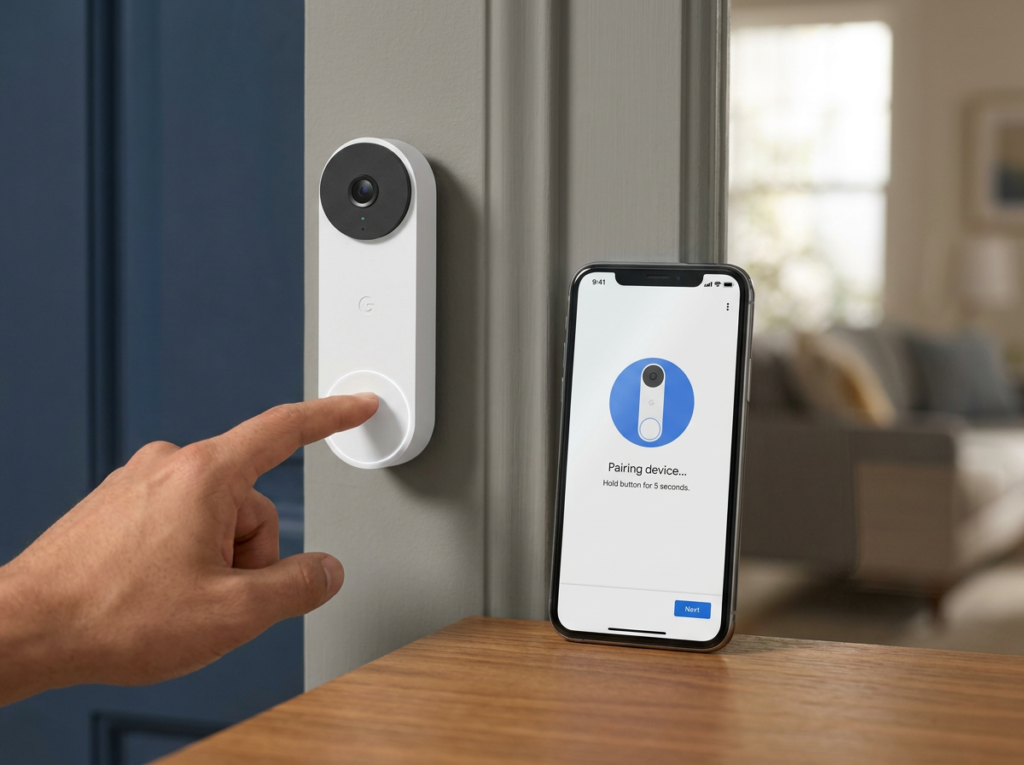
Google Nest Doorbell Installation — Wiring vs Battery
Battery-powered installation is wire-free and can be mounted almost anywhere within Wi-Fi range. The trade-off is that it can't use your home's existing doorbell chime directly — for in-home notifications when it's wire-free, Google recommends pairing it with a Google smart speaker or display instead. If you're starting from scratch with no existing wiring, our guide on installing a video doorbell without existing wiring covers the broader process.
Wired installation requires a 16–24VAC, 10–40VA rated doorbell transformer and chime, both sold separately if you don't already have compatible ones. Before installing, check your existing doorbell system's voltage — if it doesn't meet these requirements, you may need to upgrade the transformer first rather than risk under-powering the doorbell.
Google Nest Doorbell Troubleshooting
The most common issues Nest Doorbell owners run into:
Doorbell won't connect to Wi-Fi. Try moving your router closer during the initial pairing process, and confirm you're not on a guest network with client isolation enabled, which blocks the doorbell from reaching your phone. If your signal at the front door is consistently weak even after setup, see our guide on improving video doorbell Wi-Fi signal.
Not getting enough power (wired version). Signs include the doorbell not turning on, a low-power message in the app, or reduced video quality. This usually traces back to an underpowered or incompatible transformer — checking the wiring connections and confirming the transformer meets Google's voltage requirements resolves most of these cases.
Video has delays or lag. This is almost always a Wi-Fi signal issue rather than a hardware fault. Moving the router closer, reducing wireless interference from other devices, or upgrading to a mesh system are the usual fixes.
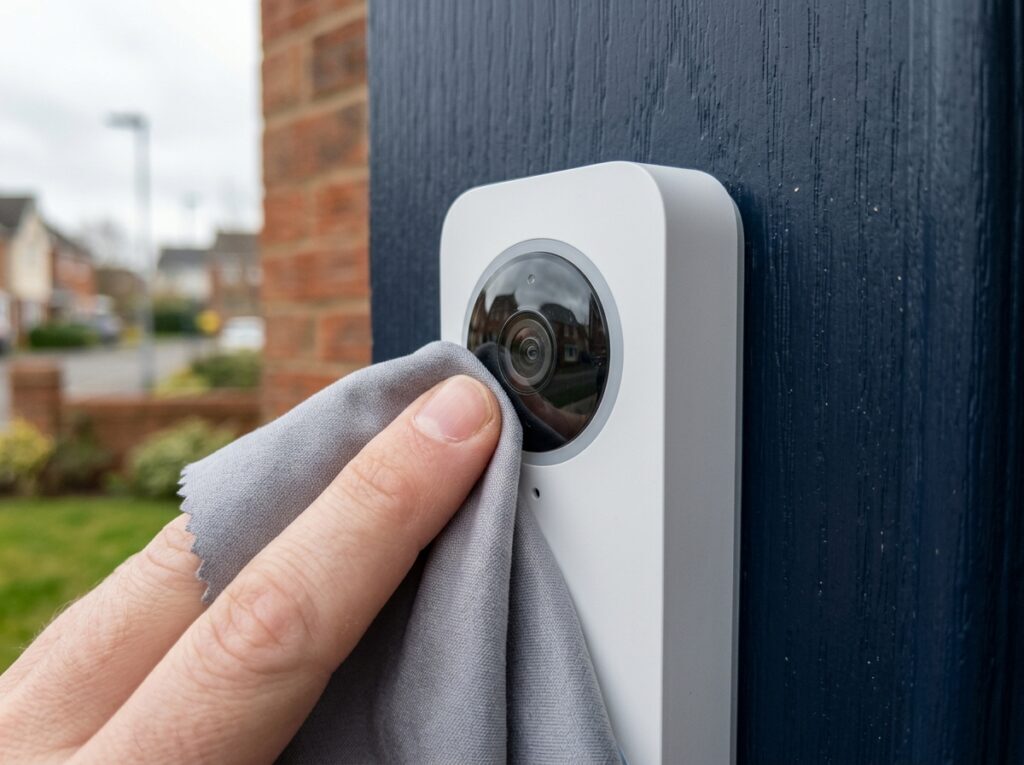
Distorted or blurry video. Start by dusting off the camera lens — this sounds obvious, but it's the single most common cause reported by users. If the picture is still poor after cleaning, check the app for a firmware update.
Doorbell chime doesn't ring indoors. With wire-free installation, your home's traditional chime won't sound automatically — this is expected behaviour, not a fault. Pairing with a Google smart speaker or display and setting up visitor announcements is the intended workaround.
Frequently Asked Questions
Does the Google Nest Doorbell need a subscription? Basic live view and notifications work without one, but continuous recording, event history, and some smart alerts require a Nest Aware subscription.
Which app do I need — Google Home or Nest app? Most current Nest Doorbell models use the Google Home app. Only the original Nest Doorbell (wired, 1st gen) requires the separate Nest app — check your model before downloading.
Can I use my existing doorbell chime with the battery version? No — wire-free installation doesn't connect to a traditional chime. You'll need a Google smart speaker or display for indoor announcements instead.
How do I find my doorbell's QR code after installation? It's located on the back of the unit — Google recommends connecting the doorbell to the app before mounting it, precisely so you can access this code easily.
Is professional installation available? Yes, Google offers professional installation through OnTech Pro, either added at checkout or booked separately after purchase.
What's the difference between the battery and wired versions? The wired version gets continuous power and can use your existing chime; the battery version is easier to install anywhere but needs periodic recharging — see our full review for a detailed comparison.
As an Amazon Associate, we earn from qualifying purchases at no extra cost to you. Prices correct at time of writing and verified on Amazon UK. Some images on this site are AI-generated and may not reflect the exact appearance of the products described.