

A weak video doorbell WiFi signal is one of the most frustrating problems a UK homeowner can face. Delayed notifications, buffering video, missed alerts, constant disconnections — all of these trace back to one root cause: the doorbell isn't getting a strong enough signal from your router.
The short answer: To improve your video doorbell WiFi signal, move your router closer to the front door, switch to the 2.4GHz band, add a WiFi extender or mesh node near the entrance, and eliminate interference from thick walls and appliances. Most UK front door signal problems can be fixed without buying a new doorbell.
This guide covers seven proven fixes — from the free and immediate to the more involved — so you can work through them in order and stop at whichever one solves the problem.
Table of Contents
Why Video Doorbell WiFi Signal Problems Are So Common in UK Homes
UK housing stock creates a perfect storm for WiFi signal problems at the front door. Older properties — Victorian terraces, Edwardian semis, 1930s bungalows — have thick solid brick walls that absorb and scatter 2.4GHz signals far more than modern cavity-wall construction. Routers are typically placed in living rooms or home offices, often at the back of the house, as far from the front door as possible.
The result: your router might be 10–15 metres from your doorbell as the crow flies, but the signal has to pass through multiple walls, a hallway, and sometimes a porch — each one reducing signal strength significantly.
Most video doorbells need a minimum WiFi signal strength of around -60 dBm (RSSI) to perform reliably. Below -70 dBm, you'll start seeing the problems described above. Below -80 dBm, the doorbell will struggle to stay connected at all.
The good news: signal strength is almost always fixable. Here's how.
1. Check Your Current Signal Strength First
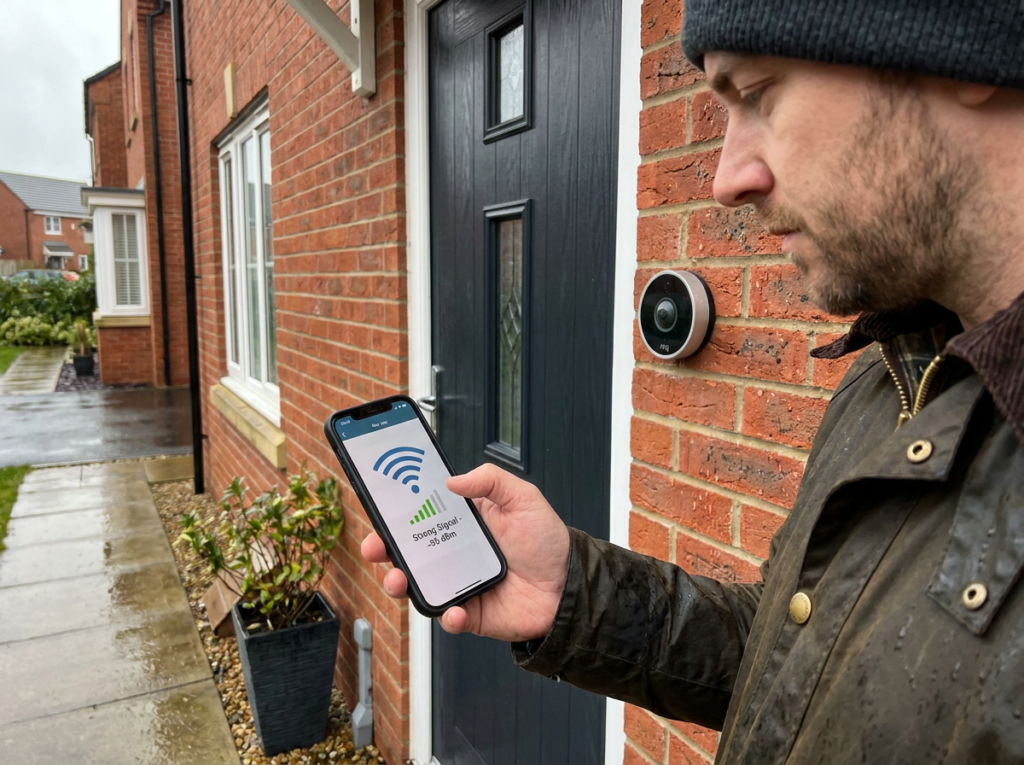
Before trying any fixes, measure the signal strength at your front door. This gives you a baseline and tells you how serious the problem is.
How to check:
- In the doorbell app — Ring, Eufy, and most other brands show signal strength (RSSI) in the device settings. Ring shows it under Device Health. Eufy shows it in Device Info.
- On your phone — Stand at your front door and check WiFi signal bars. Download a free WiFi analyser app (WiFi Analyzer on Android, Network Analyzer on iOS) for a precise dBm reading.
What the numbers mean:
| Signal Strength | Quality | Result |
|---|---|---|
| -30 to -50 dBm | Excellent | Full functionality |
| -50 to -60 dBm | Good | Reliable performance |
| -60 to -70 dBm | Fair | Occasional issues |
| -70 to -80 dBm | Poor | Frequent problems |
| Below -80 dBm | Very poor | Constant disconnections |
Once you know where you stand, work through the fixes below until you reach -60 dBm or better.
2. Switch to the 2.4GHz Band
This is the most common fix — and it's free. Most modern routers broadcast on both 2.4GHz and 5GHz bands. The 5GHz band is faster but has shorter range and worse wall penetration. The 2.4GHz band is slower but travels further and passes through solid walls far more effectively.
Almost all video doorbells only support 2.4GHz — Ring, Eufy, Tapo, and Google Nest battery models all operate on 2.4GHz only. If your phone automatically connected your doorbell to the 5GHz band during setup, this can cause exactly the symptoms described above.
How to fix it:
- Log into your router admin panel (usually 192.168.1.1 or 192.168.0.1 in a browser)
- Check whether your 2.4GHz and 5GHz networks share the same name (SSID)
- If they do, either separate them into different names (e.g. "HomeName_2.4" and "HomeName_5") so you can connect the doorbell specifically to 2.4GHz
- Reconnect your doorbell to the 2.4GHz network
If you're unsure how to do this, your router manufacturer's website will have a guide — BT, Sky, Virgin, and TalkTalk all publish step-by-step instructions for their hub models.
3. Video Doorbell WiFi Signal Fix — Reposition Your Router
Router placement is the single biggest factor in front-door signal strength, and it's something many UK households have never considered.
Most routers live wherever the engineer installed them — often in a back room, under a desk, or inside a cupboard. Each of these choices costs you signal at the front door.
Ideal router position:
- As central in the home as possible — hallways work well
- Elevated — on a shelf or table, not on the floor
- Away from thick walls, metal objects, microwaves, and cordless phone bases (all interfere with 2.4GHz)
- Not inside a cupboard or enclosed space
Moving your router even 2–3 metres toward the front of the house can make a significant difference to front-door signal strength in a typical UK terrace or semi.
Practical tip for UK homes: If your router is connected to a master socket at the back of the house (common in BT-wired properties), consider using a long ethernet cable to move the router to a more central position, or ask your ISP about relocating the master socket.
4. Add a WiFi Extender or Mesh Node Near the Front Door
If repositioning the router isn't practical, a WiFi extender (also called a repeater or booster) placed between your router and front door is the most cost-effective fix for most UK homes.
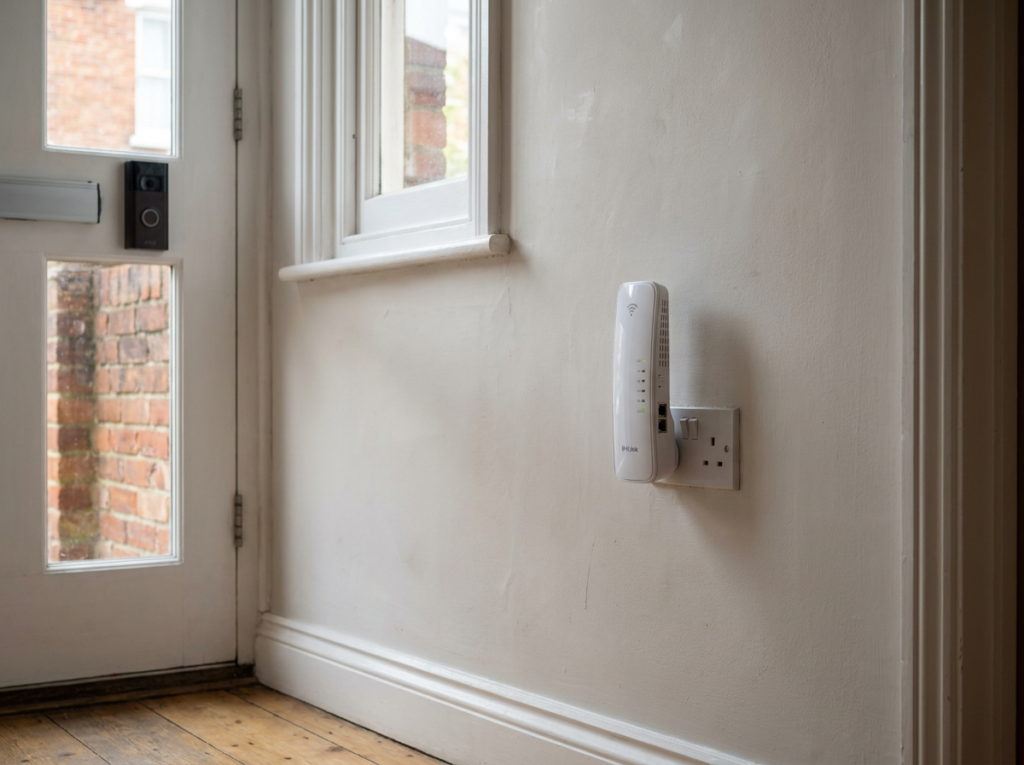
WiFi extender (£20–£50): Plugs into a wall socket and rebroadcasts your existing WiFi signal. Place it roughly halfway between your router and front door — in a hallway, landing, or near the front of the house. Ensure it connects to your 2.4GHz network, then reconnect the doorbell to the extender's network.
Mesh WiFi system (£80–£300): A better long-term solution. Mesh systems (like Google Nest WiFi, Amazon Eero, or BT Whole Home WiFi) use multiple nodes to create a single seamless network throughout the home. Place one node near the front door and your doorbell will always connect to the strongest available signal automatically.
For UK homes with thick walls or multiple floors, mesh is often worth the investment — it solves the front-door problem and improves coverage throughout the house at the same time.
Which to choose: If the signal at your front door is -70 to -75 dBm, an extender will likely suffice. If it's below -75 dBm, or if you have signal problems throughout the house, invest in a mesh system.
5. Eliminate Interference Sources
Even a well-positioned router can struggle if there's interference nearby. In a typical UK home, the most common culprits are:
Thick solid brick walls — The single biggest issue in older UK properties. 2.4GHz signals lose approximately 6–12 dB passing through a single solid brick wall. Two walls between router and doorbell means the signal is already significantly weakened before it reaches the front door.
Microwave ovens — Operate on 2.4GHz and actively interfere with WiFi during use. Don't place your router near the kitchen.
Cordless phones — DECT cordless phones (the most common type in UK homes) can interfere with 2.4GHz networks. If your router is near a cordless phone base station, move one or the other.
Neighbouring WiFi networks — In dense UK urban areas — terraced streets, flats, city centres — dozens of WiFi networks compete on the same channels. Use a WiFi analyser app to check which channels your neighbours are using, and set your router to use a less congested channel (1, 6, or 11 are the standard non-overlapping 2.4GHz channels).
Baby monitors and smart speakers — Both can cause minor interference. Keep them away from your router if possible.
6. Check Your Broadband Speed and Upload Bandwidth
A strong WiFi signal at the front door solves most problems — but if your overall broadband speed is the limiting factor, you'll still see issues even with a perfect signal.
Minimum speeds for video doorbells:
- 1080p streaming: 2 Mbps upload recommended
- 2K streaming: 4–5 Mbps upload recommended
- Multiple cameras simultaneously: add 2–5 Mbps per additional device
Run a speed test at speedtest.net and check your upload speed specifically — this is what matters for doorbell video streaming, not download speed.
If your upload speed is below 2 Mbps, the doorbell will struggle regardless of WiFi signal strength. Contact your ISP — many UK providers have upgraded infrastructure available that your current plan may not be using.
For UK households on older ADSL connections (common in rural areas), upgrading to FTTP (full fibre) where available will make a significant difference to smart home device performance across the board.
7. Use the Chime Repeater as a WiFi Extender
This tip applies specifically to doorbells that include a chime repeater — notably the Aqara Video Doorbell G4 and some Eufy models.
The Aqara G4's chime repeater does double duty: it plays the indoor chime sound and acts as a WiFi signal repeater for the doorbell. Placing the chime repeater closer to the front door (within 5 metres of the doorbell) significantly improves the G4's connection stability — Aqara specifically recommends this in their setup instructions.
If you're using a doorbell with a dedicated chime repeater, ensure the repeater is positioned as close to the front door as practical — not in a back room or upstairs bedroom where it won't help the signal.
Video Doorbell WiFi Signal — Quick Diagnostic Guide
Work through this in order — stop when the problem is solved:
Step 1: Check signal strength in the doorbell app or on your phone at the front door. Step 2: Confirm the doorbell is connected to 2.4GHz, not 5GHz. Step 3: Restart your router (unplug for 30 seconds, replug). Step 4: Move the router to a more central position if possible. Step 5: Add a WiFi extender or mesh node near the front of the house. Step 6: Check for interference sources near the router. Step 7: Run a broadband speed test and check upload speed.
Most UK front-door signal problems are solved by steps 2–5. If you've worked through all seven and the doorbell still struggles, the issue may be the doorbell itself — check whether a firmware update is available in the app, or contact the manufacturer's support.
Which Video Doorbells Handle Weak WiFi Best?
Not all doorbells are equally resilient to poor signal. Models with a chime repeater that extends WiFi — like the Aqara G4 — have a built-in advantage in challenging signal environments.
Wired doorbells with a stable power supply also tend to maintain connections more reliably than battery models, which occasionally drop connection to conserve power. If you have existing doorbell wiring, a wired model may be worth considering — see our guide to the best wired video doorbells UK.
For battery models, ensuring the battery stays above 20% charge helps maintain connection stability — low battery is a common cause of intermittent disconnections that's easily mistaken for a signal problem.
If you're still choosing a doorbell and WiFi signal at your front door is a concern, our best video doorbell UK guide notes WiFi performance for each model reviewed.
Frequently Asked Questions
Why does my video doorbell keep losing WiFi connection? The most common causes are: weak signal at the front door (check RSSI in the app), the doorbell connected to the 5GHz band instead of 2.4GHz, low battery causing the device to drop connection to save power, or interference from thick walls between the router and front door. Work through the seven fixes above in order.
What WiFi signal strength does a video doorbell need? Most video doorbells need a minimum signal strength of -60 dBm (RSSI) for reliable performance. Below -70 dBm you'll experience intermittent issues; below -80 dBm the doorbell will struggle to stay connected. Check RSSI in your doorbell app under Device Health or Device Info.
Will a WiFi extender improve my video doorbell? Yes, in most cases. Place the extender halfway between your router and front door, ensure it's broadcasting on 2.4GHz, and reconnect the doorbell to the extender's network. A mesh WiFi system is a better long-term solution for homes with persistent signal problems throughout the property.
Does it matter whether my doorbell uses 2.4GHz or 5GHz? Yes — significantly. Most video doorbells only support 2.4GHz. Even those that support both bands should use 2.4GHz at front doors, as it penetrates walls better and maintains signal over longer distances. 5GHz is faster but has a much shorter effective range.
My doorbell signal looks fine but video still buffers — why? If signal strength is good (above -60 dBm) but video quality is poor, the issue is likely your broadband upload speed. Run a speed test at speedtest.net and check your upload figure — you need at least 2 Mbps dedicated to the doorbell for reliable 1080p streaming.
Can I use a powerline adapter to improve my video doorbell's connection? Yes — a powerline adapter (which sends internet signal through your home's electrical wiring) can be used to position a router or access point much closer to your front door. This is particularly useful in UK properties where thick walls prevent WiFi signals from reaching the front of the house effectively.
As an Amazon Associate, we earn from qualifying purchases at no extra cost to you. Prices correct at time of writing and verified on Amazon UK. Some images on this site are AI-generated and may not reflect the exact appearance of the products described.